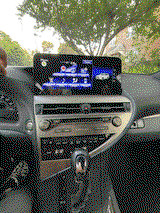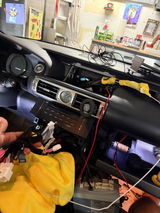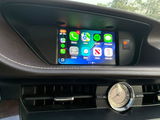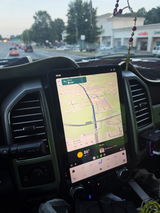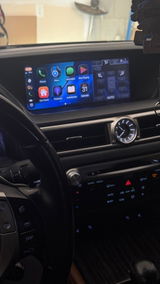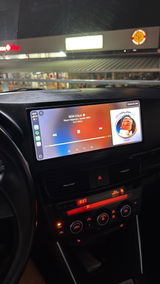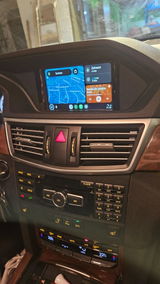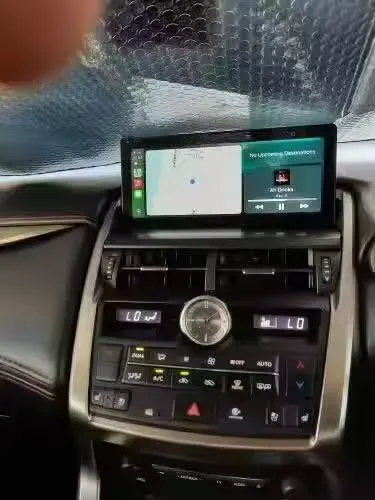
Lexus Carplay modules FAQs
How to properly connect CarPlay
- First, make sure Wi-Fi and Bluetooth are both turned on in your phone.
- Search for the CarPlay unit’s Bluetooth on your phone and connect to it.
- Please note: once Bluetooth is connected, Wi-Fi will be automatically activated (you don’t need to manually connect Wi-Fi), just click "Allow" on your phone. and this will automatically activate the CarPlay connection.
- After CarPlay is connected, data will be transmitted via Wi-Fi, and Bluetooth will automatically disconnect (this is normal and does not require manual reconnection). Therefore, Bluetooth can remain disconnected, or it can be used for audio output.
About sound
We provide two sound output options: AUX or Bluetooth audio. You can only choose one of them.
When using AUX:
-
In the original car system, select AUX as the audio output.
-
On your phone, delete the original car’s Bluetooth to prevent it from reconnecting automatically and causing no sound.

When using Bluetooth audio: (Your car must support Bluetooth music, not just Bluetooth phone calls)
-
In the original car system, select Bluetooth as the audio output.
-
In our CarPlay system settings, check “disable phone link.”
-
Connect your phone to the car’s original Bluetooth.
All three steps are essential. please refer to this link for details:https://www.carputech.com/blogs/news/how-to-use-bluetooth-audio-carputech-apple-carplay-1

About How to do system upgrades
we will send you files, please refer to this link to do upgrades:
https://www.carputech.com/pages/how-to-upgrade-the-carputech-carplay-decoder-system
After the upgrade, delete all the records of your previous wifi and bluetooth connection.
Do the connection just like the first time.
About Siri
To use Siri with CarPlay, you can either press and hold the voice command button on your steering wheel or touch and hold the CarPlay Home or Dashboard button on your car's touchscreen. If your car supports it, you can also say "Hey Siri" to activate Siri.
Here's a more detailed breakdown:
Use CarPlay to have Siri automatically read your incoming text messages and listen for your response.
-
On your iPhone, go to Settings
 > Announce Messages, then turn on Announce Notifications.
Note: You can also enable or disable Announce Messages directly in CarPlay by tapping Announce when Siri reads an incoming text message. See Have Siri announce notifications.